



Start with your first words.
Add Hufu in System Settings, then adjust it to your habits. Migration, word input and AI notes are here.
Add the input method.
Install and register Hufu. Open System Settings → Keyboard → Input Sources and add Hufu. If it is missing, log out and back in, then check again.
After an update, let macOS launch the input process when you next type. Do not launch it manually as a normal app.
The first time Hufu Settings opens, a guide confirms the input method is enabled, lets you pick the page size and script mode (importing Squirrel when found), sets a few habits and gives you a practice field. Sample phrases: zhmn → 虎码, jxbh → 你好, tuja → 我们, dgrn → 中国. Run it again from Advanced › First-run guide.
Installation instructionsConfigure RIME visually.
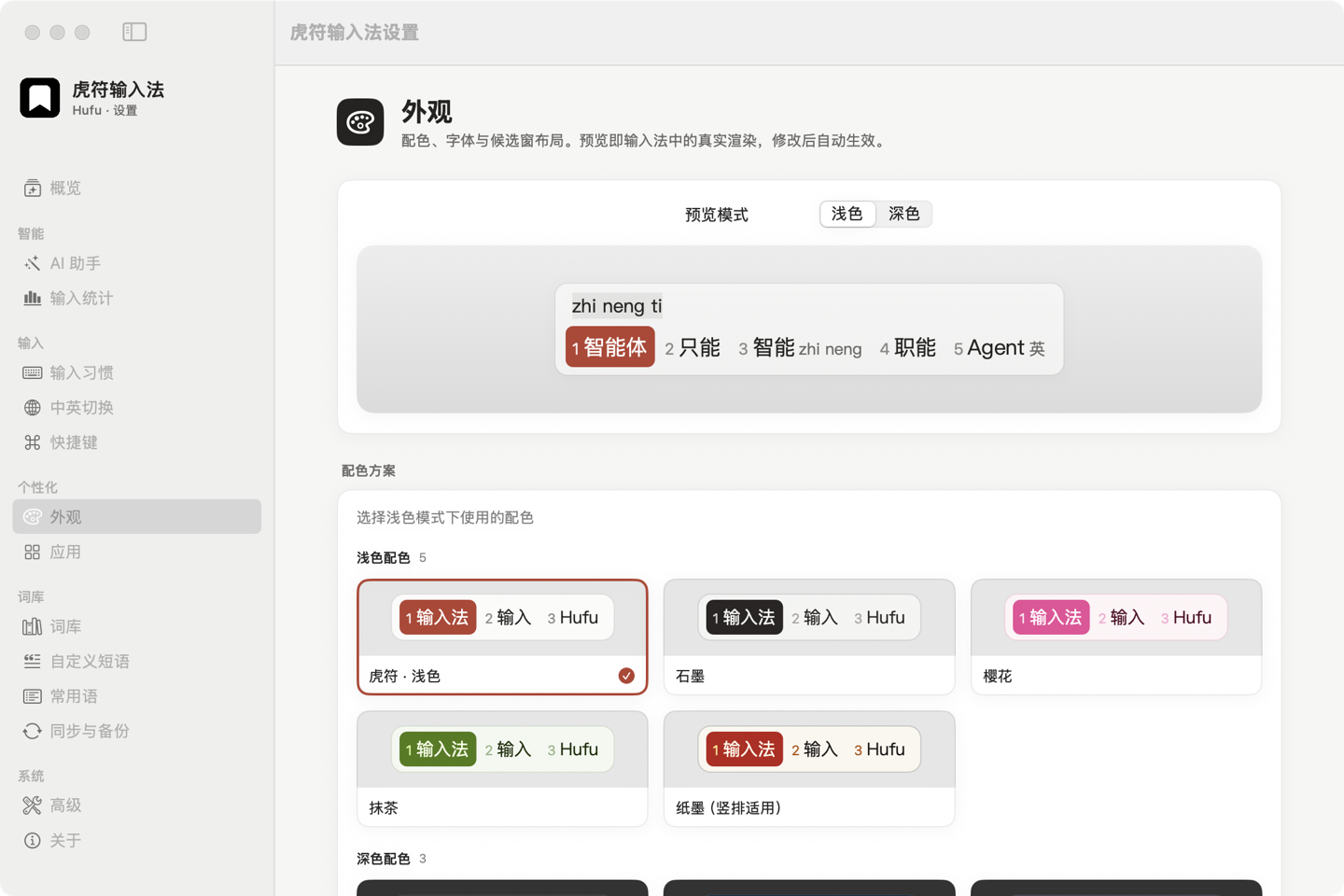
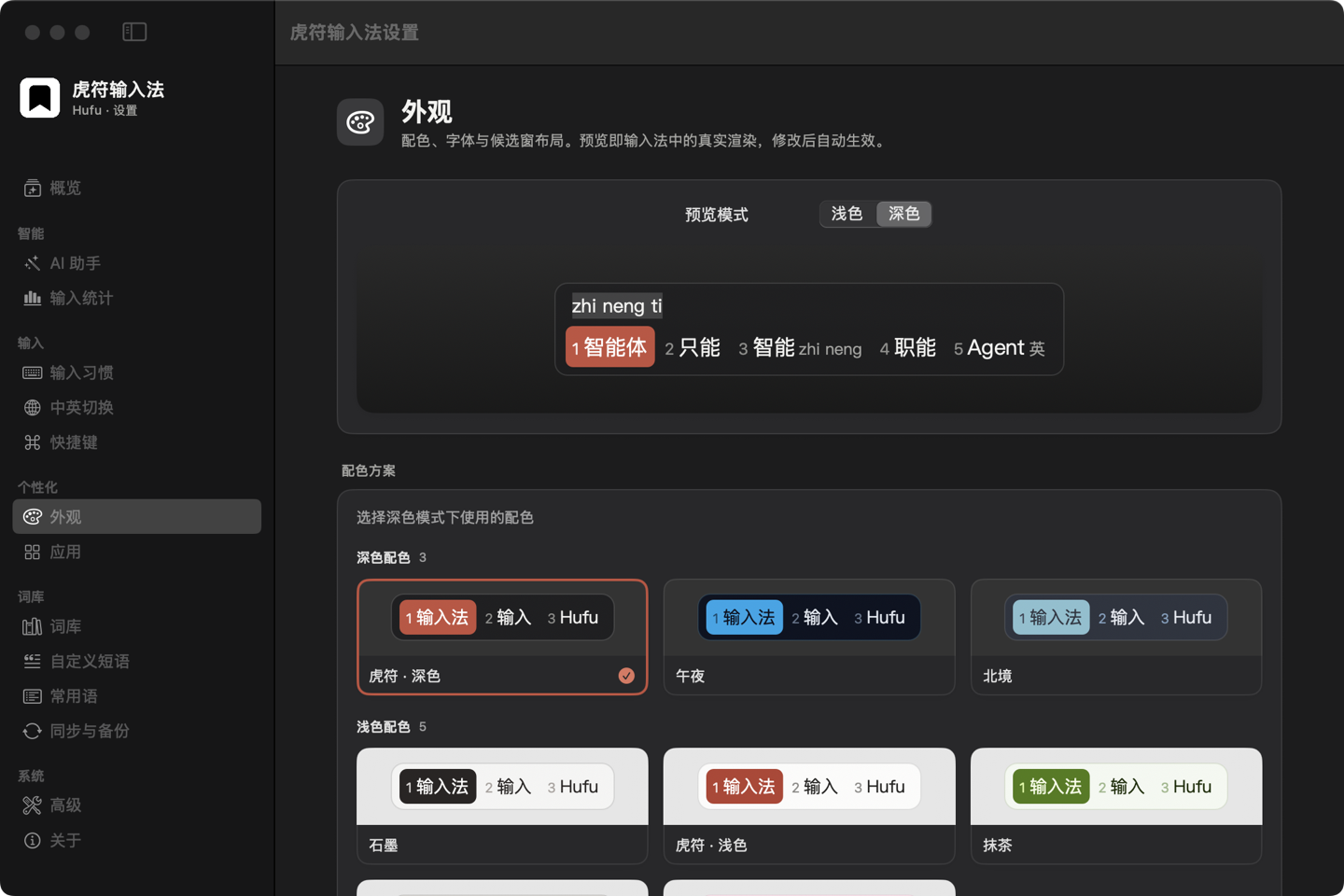
Open Hufu Settings from the input menu to adjust candidates, script mode, shortcuts and appearance; changes apply a few seconds later.
Visual settings cover candidates, page keys, Chinese/English switching, the four script modes and Traditional standard, word input, convenience inputs, shortcuts and appearance. Switch between mixed, Traditional output, Traditional only and Simplified only; ⌃O or ⌃⇧4 flips it for the session. Each app can start in English, Chinese or the shared state.
Visual preferences and hand-written configuration are kept in separate layers. Advanced RIME configuration remains available.
Migrate from Squirrel.
Sync user data in Squirrel first, then import from Hufu Settings. The importer reads the original Rime directory without writing to it.
Schemas, vocabulary, Lua, themes and user frequency snapshots are imported. Keep a backup of important configuration.
Word input and tables.
The official Tiger-Code vocabulary ships with the installer: the main table holds single characters and your own phrases, and three word tables are prebuilt. Settings › Typing › word input is off by default; when enabled it mounts the table that matches the script mode — mixed uses the simplified table plus the traditional-code table, Traditional output a pre-converted table, Traditional only the traditional-code table and Simplified only the simplified one.
The input method never downloads word lists. Custom phrases live in the huma_custom table with hand-written Tiger-Code codes and merge into the main dictionary on the next automatic deploy.
Vocabulary notesUse AI explicitly.
Enable AI features, then press ⌃⌥P, or hold ⌥ and press Space, to choose translate, polish or a custom action. Simplified/Traditional conversion runs locally and works without AI. AI works on, in order: the draft in the input layer, your selection, or what you just typed in this field; while choosing a candidate, it commits that candidate first and handles only that word. The website shows fixed examples.
The default is Apple’s on-device model, whose availability depends on your device, system settings and region (currently unavailable for mainland China devices and accounts). Otherwise, configure your own OpenAI-compatible endpoint (may be billed); it requires separate permission to send target text. There is no automatic cloud fallback.
Read privacy detailsDisable and uninstall.
Switch to another input method and remove Hufu in System Settings first. The development app is installed in your user Library Input Methods directory.
Your configuration and word frequency data live separately. Uninstalling the app and removing personal data are separate actions; back up before removing data.